Fifty tabs.
One screen.
New work comes in, the system sorts it, assigns it, and drafts the reply — your team still approves every important email. This is the custom-built workspace we made for a client, in daily use by seven roles — not a template or off-the-shelf tool.
12-MIN TOUR · 5 STOPS · NO LOGIN NEEDED
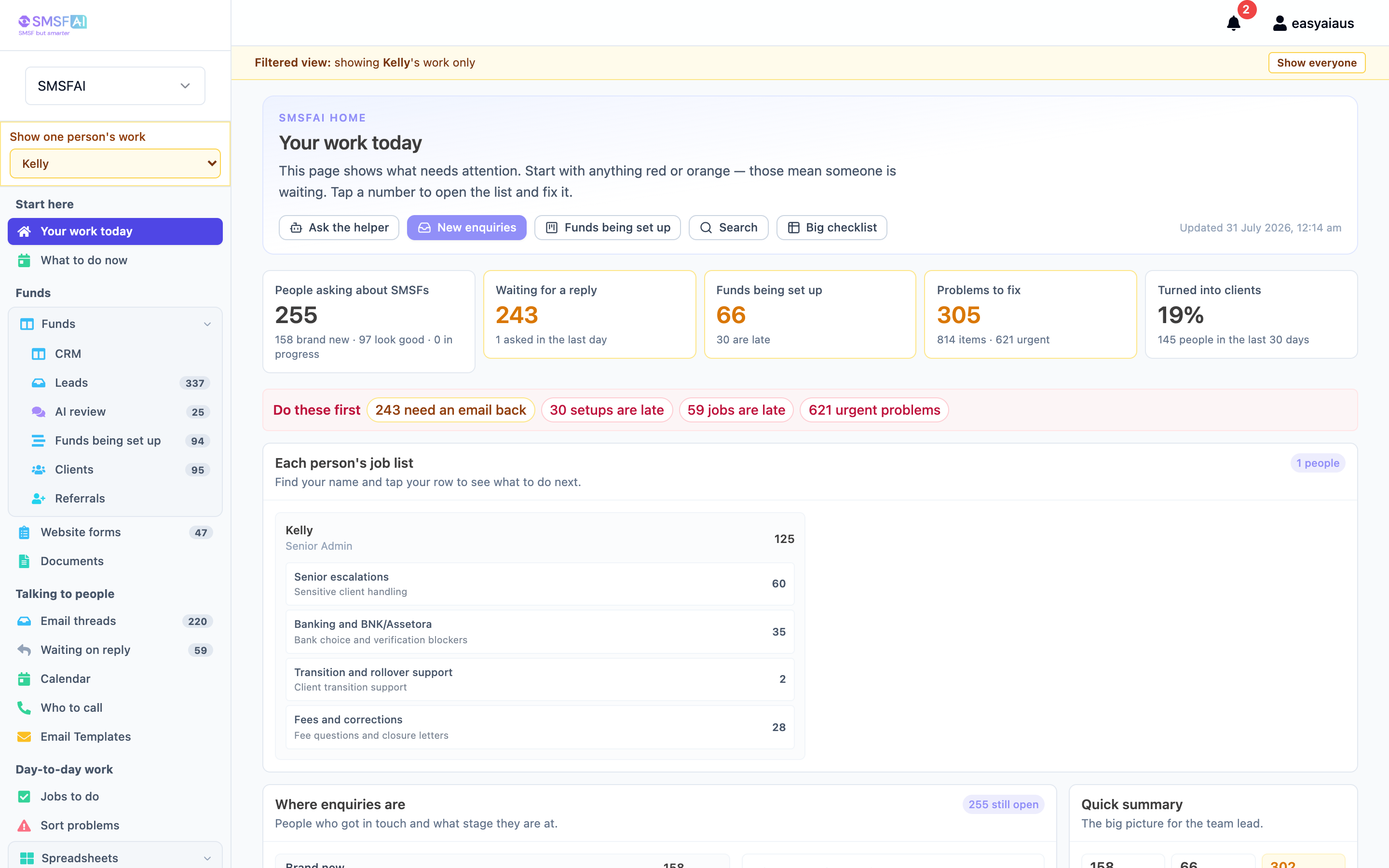
assets/images/demo/smsfai-after.pngSame team. Same clients.
A different Tuesday morning.
Flip between how the week used to start and how it starts now. Same people — the work just stopped living in fifty tabs.
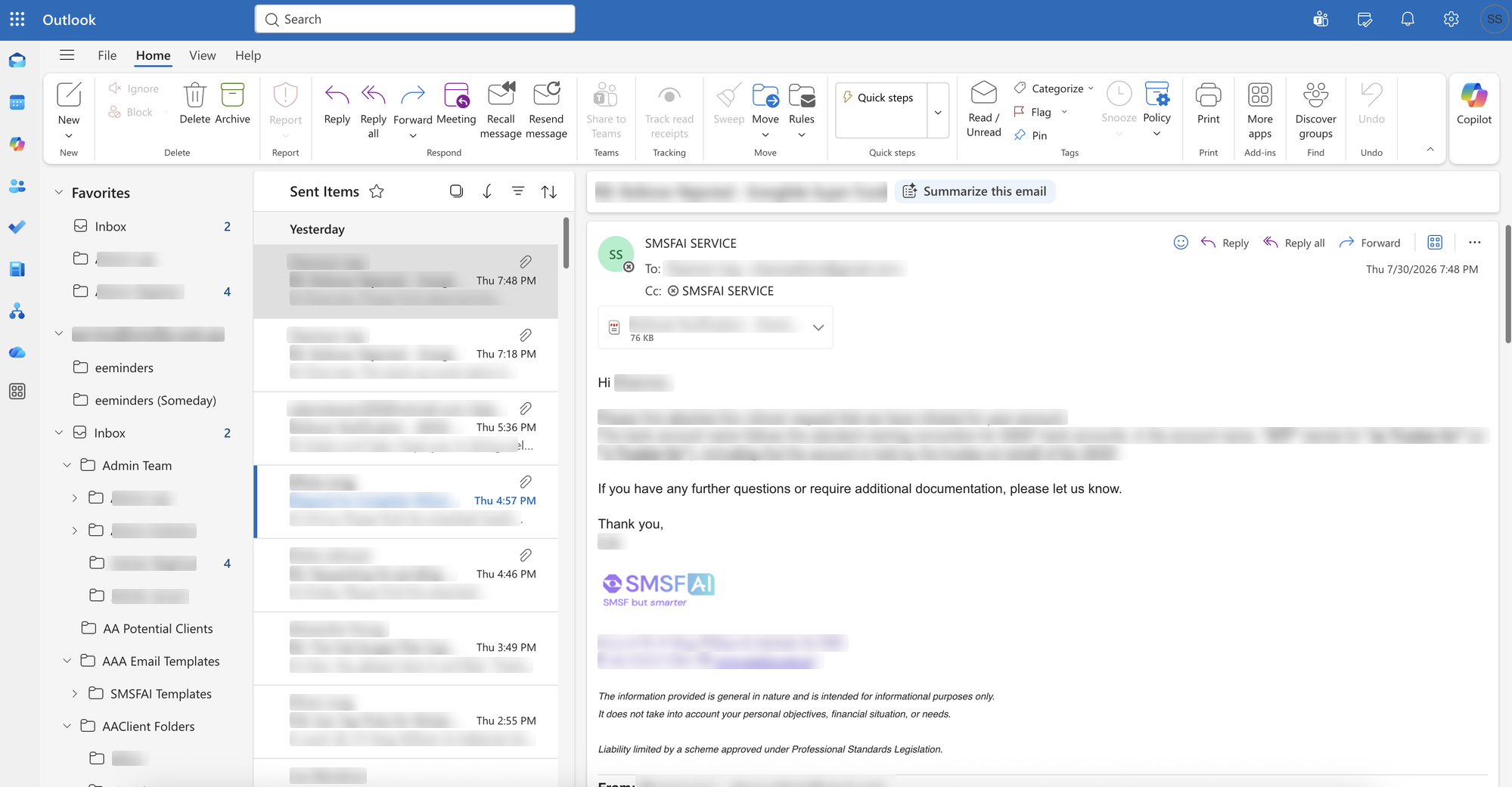
CLICK “THE NEW WAY” — CLIENT DETAILS BLURRED
- “Who saw this email?” — every morning
- The boss asks “any updates?” in group chat — and waits
- Client history lives in Excel rows and memory
- Steps get skipped — or done twice — by accident
- Every email becomes a sorted job with a draft reply
- Morning briefing — the updates are already there
- One timeline per client, first enquiry → fully set up
- Blockers flagged — steps can’t be skipped
Five stops. One story.
Work comes in → gets sorted → lands on the right person → can’t skip steps → AI helps, but humans decide.
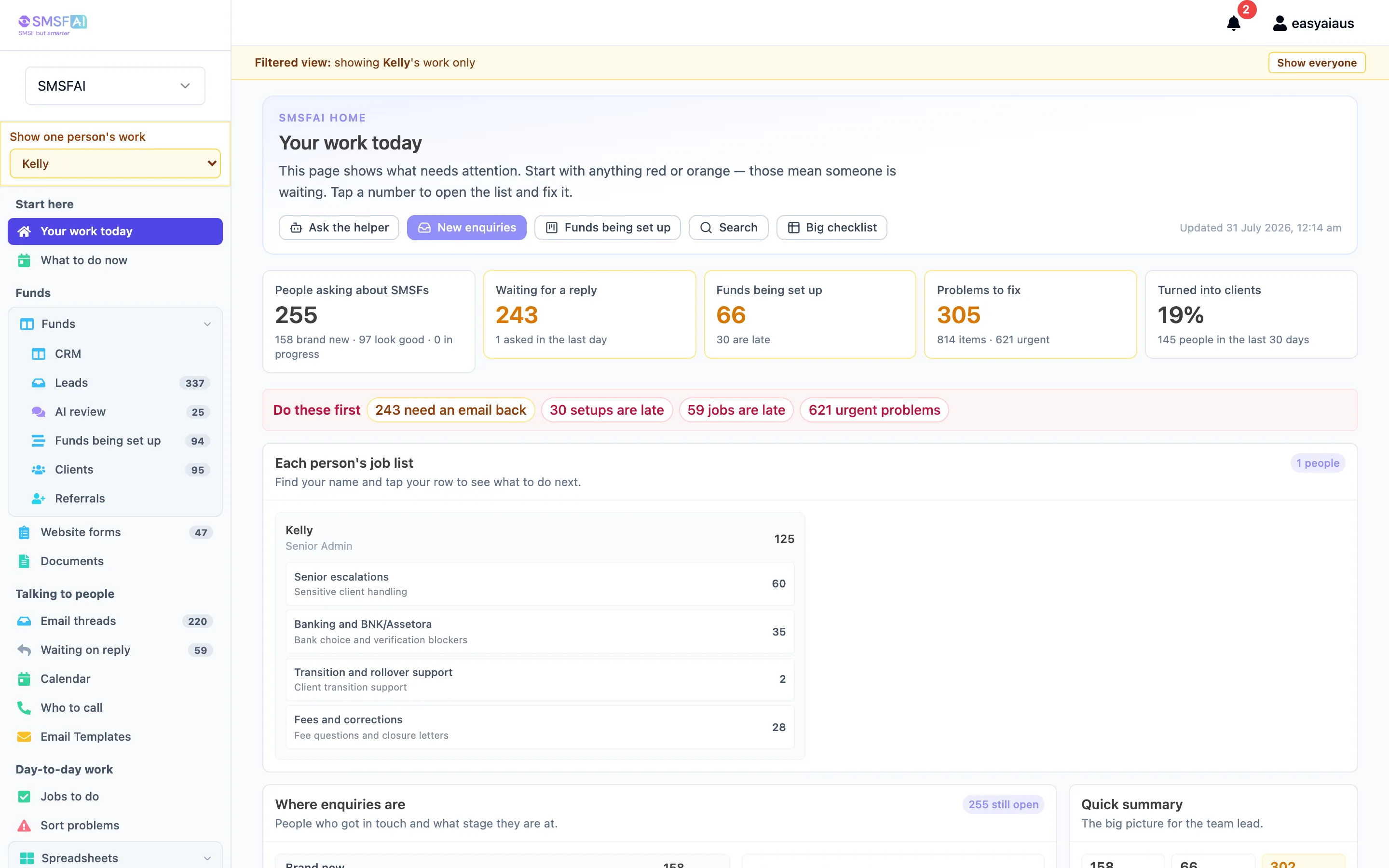
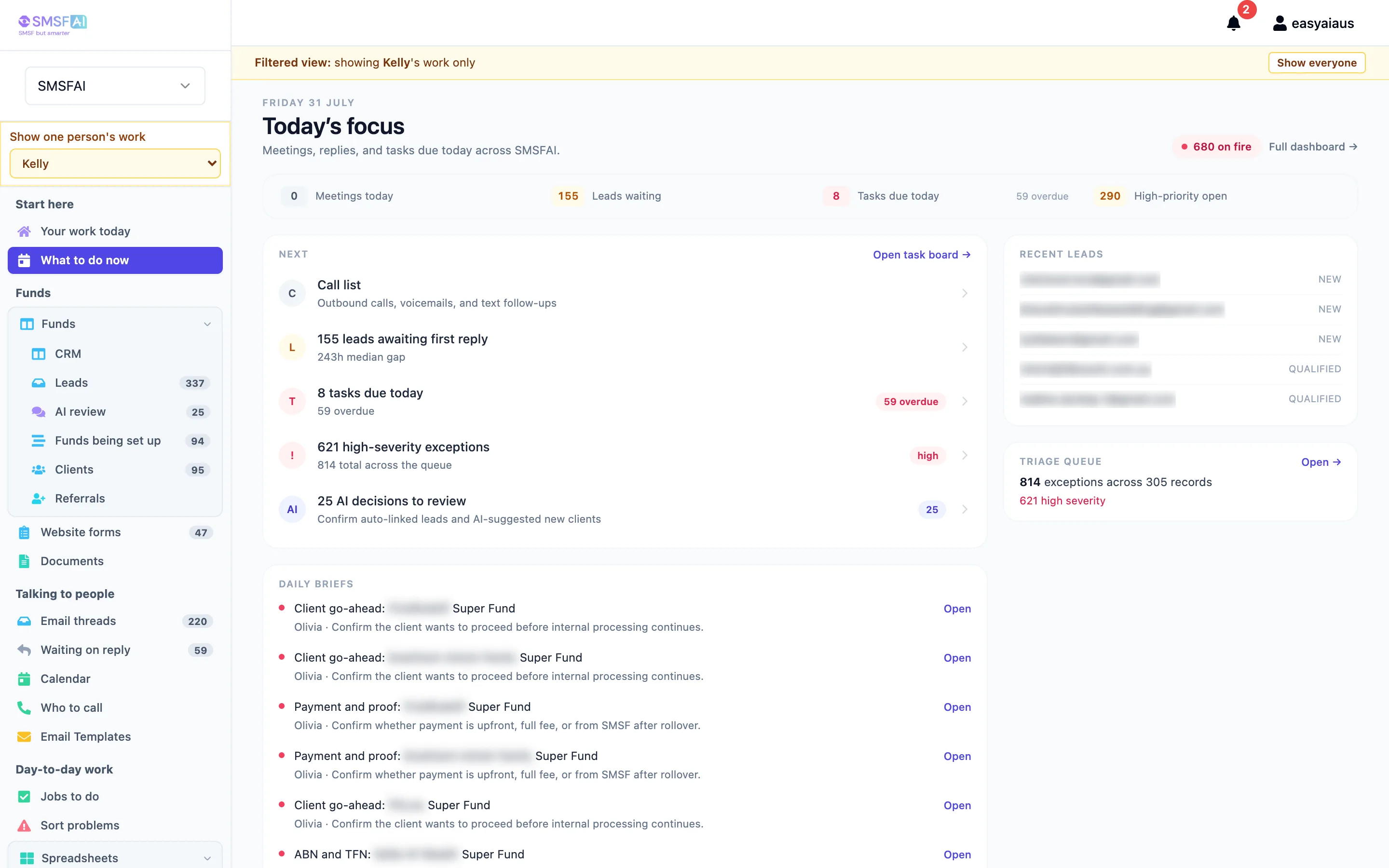
Dashboard — “Morning briefing”
Say this
“This is like the school notice board at the start of the day. You see what’s new, what’s stuck, and who owns what — without opening 50 emails.”
- New leads and open cases at a glance
- A short management summary at the top
- Team lanes — each person’s queue
“The boss doesn’t have to ask ‘any updates?’ in a group chat — it’s already here.”
Your work today — the notice board
assets/images/demo/smsfai-dashboard.webpWhat to do now — each person’s queue, with daily briefs
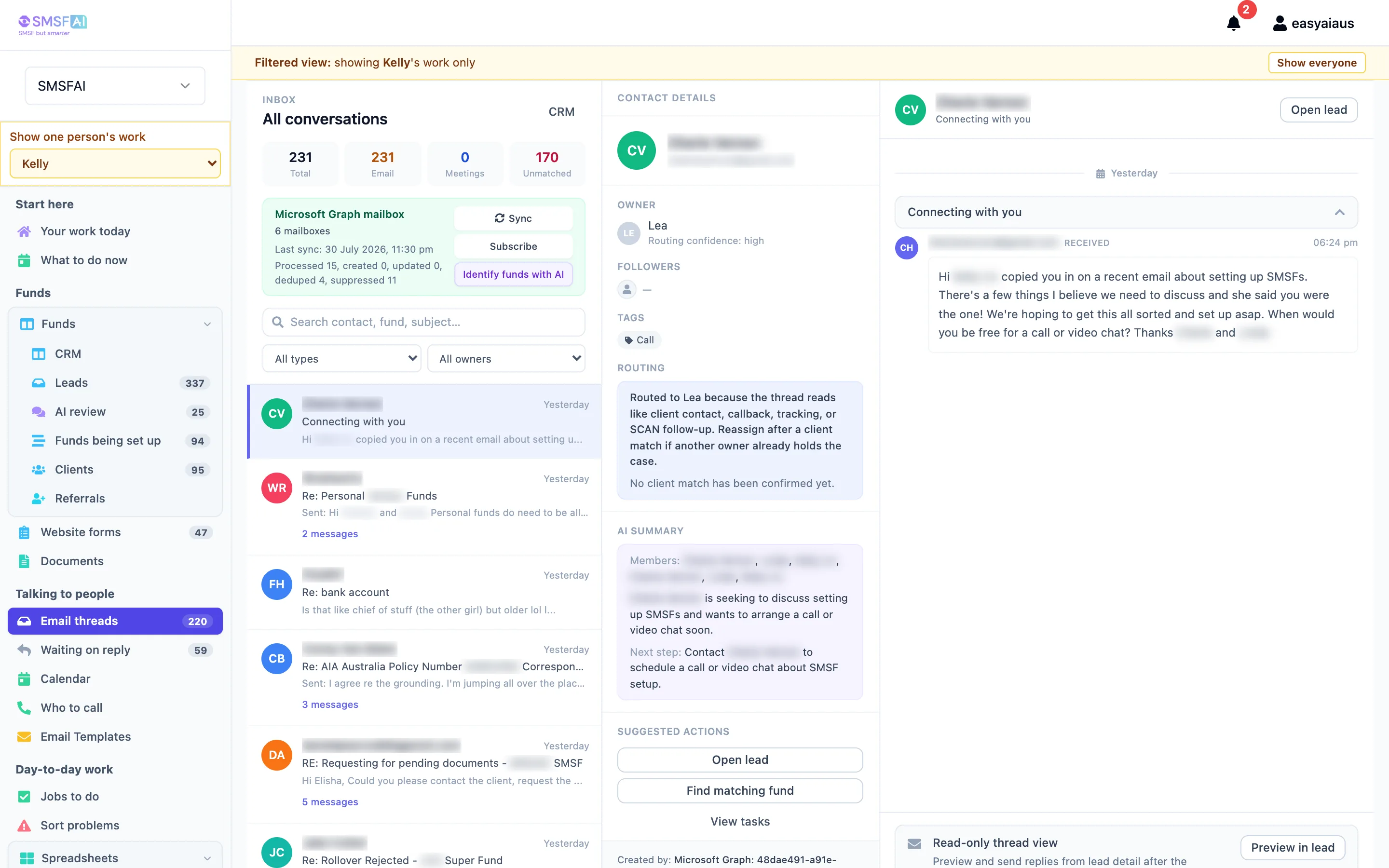
assets/images/demo/smsfai-today.webpInbox — “Email becomes a job”
Say this
“When an email arrives, we don’t leave it in Outlook. The system reads it, sorts it — call this client, chase a document, bank issue — and puts it on the right person’s list with a suggested reply.”
- A thread with a label (call, document, bank, etc.)
- Who owns it
- Suggested email (draft — not auto-sent)
“Less ‘who saw this email?’ More ‘here’s the job and the draft reply.’”
Sorted threads, owners, and a draft reply waiting
assets/images/demo/smsfai-inbox.webpCRM / Funds — “One story per client”
Say this
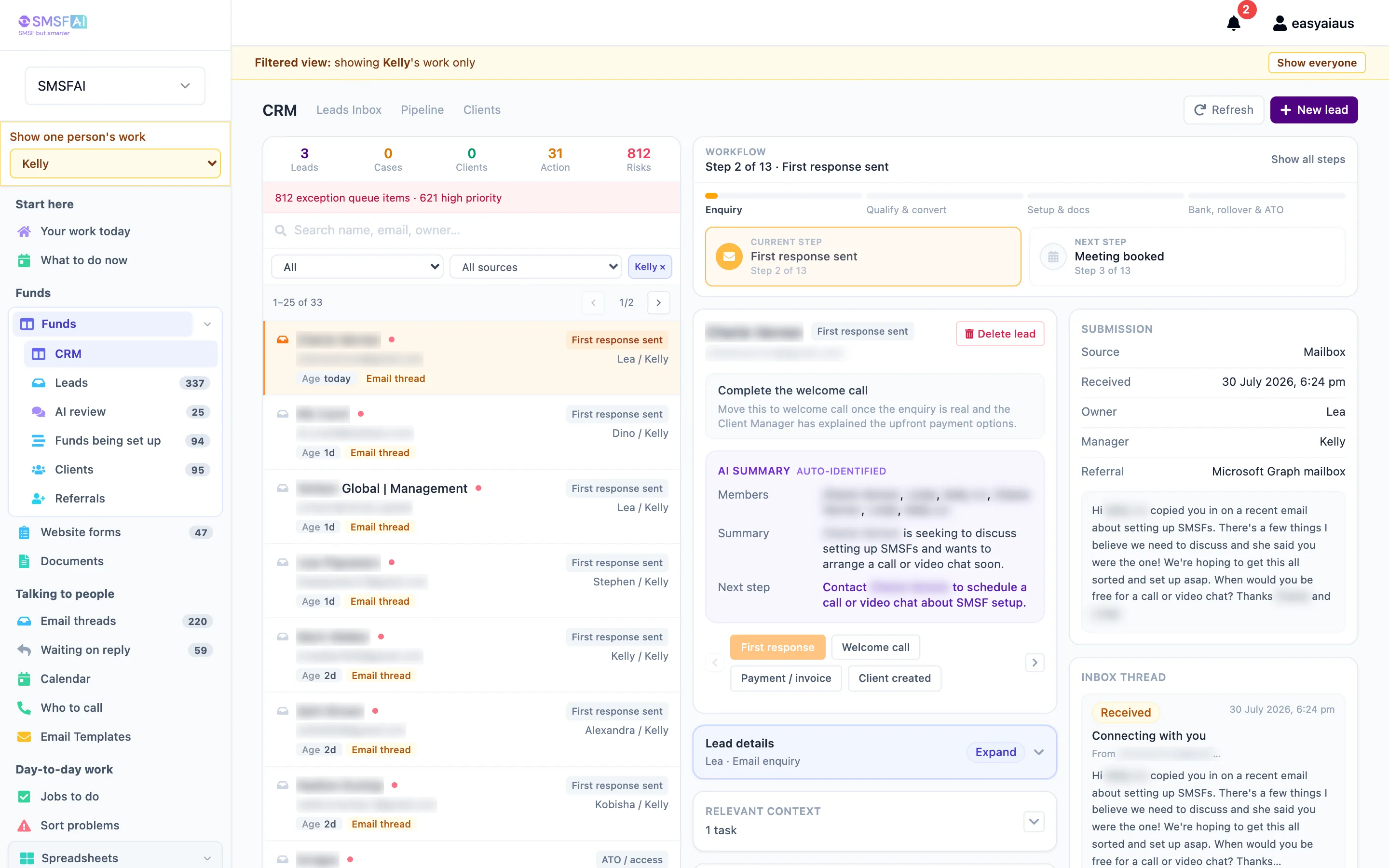
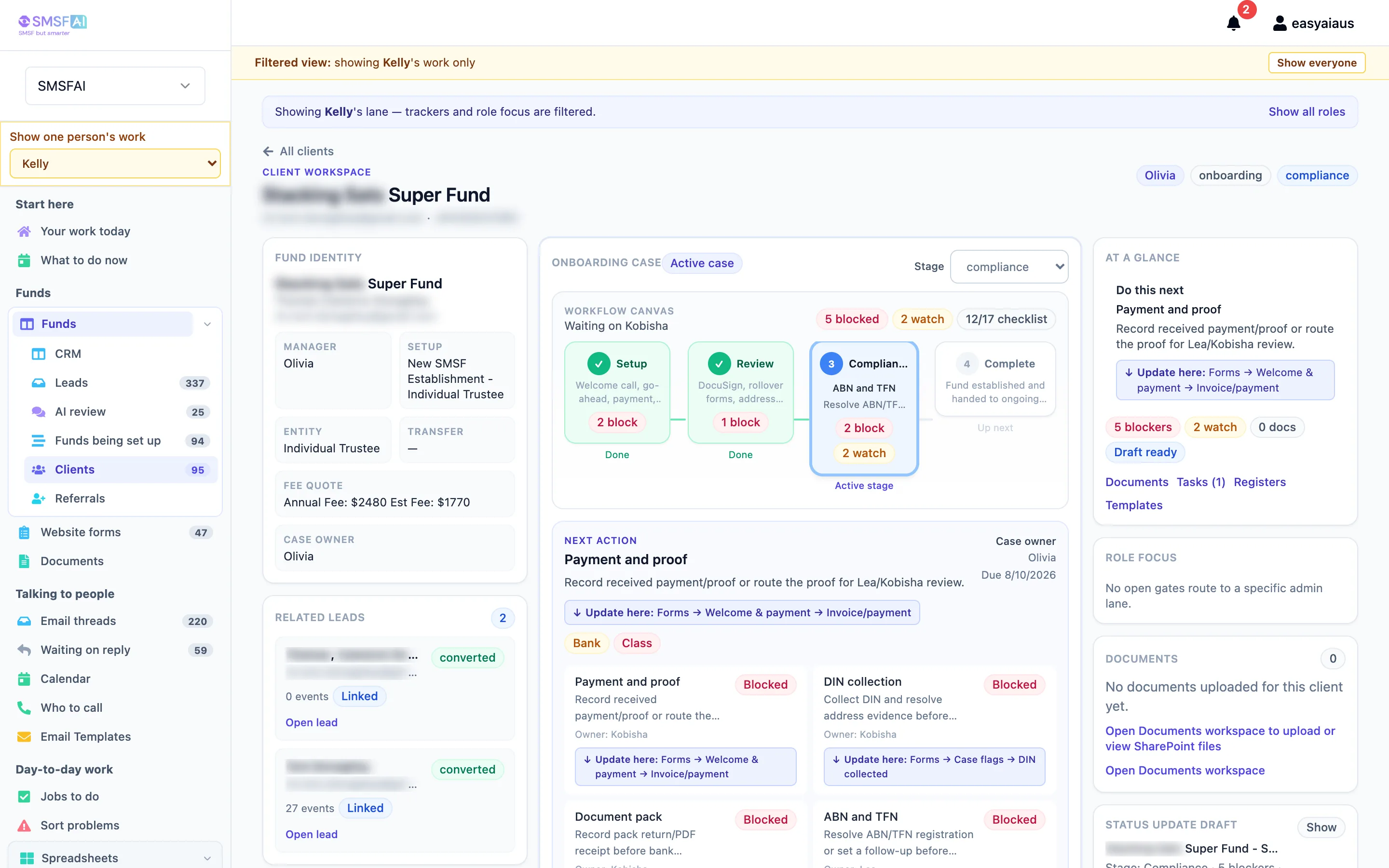
“Every fund has one timeline — from first enquiry to fully set up. You see what stage they’re at, what’s blocking them, and what email to send next.”
On the lead
- Timeline — what already happened
- First-response draft
- “Already sent” protection — can’t accidentally email twice
On the client
- Setup steps — payment, documents, bank, rollover
- Blockers — “can’t move forward until X is done”
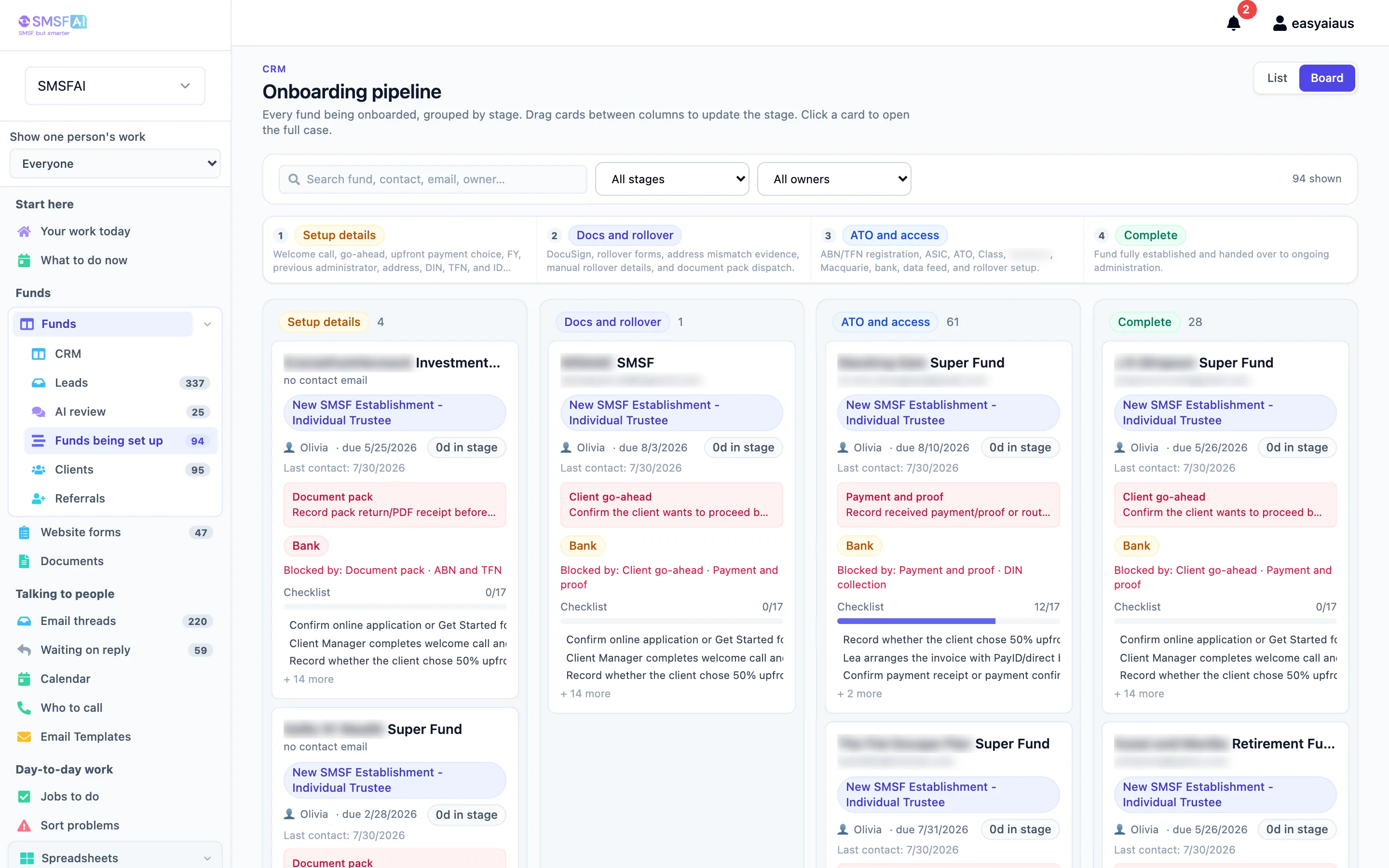
“It’s not just contacts in a list — it’s the whole journey with rules so steps aren’t skipped.”
The lead — 13-step workflow, AI summary, first response tracked
assets/images/demo/smsfai-crm-list.webpThe client — setup steps, blockers, and what to do next
assets/images/demo/smsfai-crm.webpEvery fund, grouped by stage — nothing can skip ahead
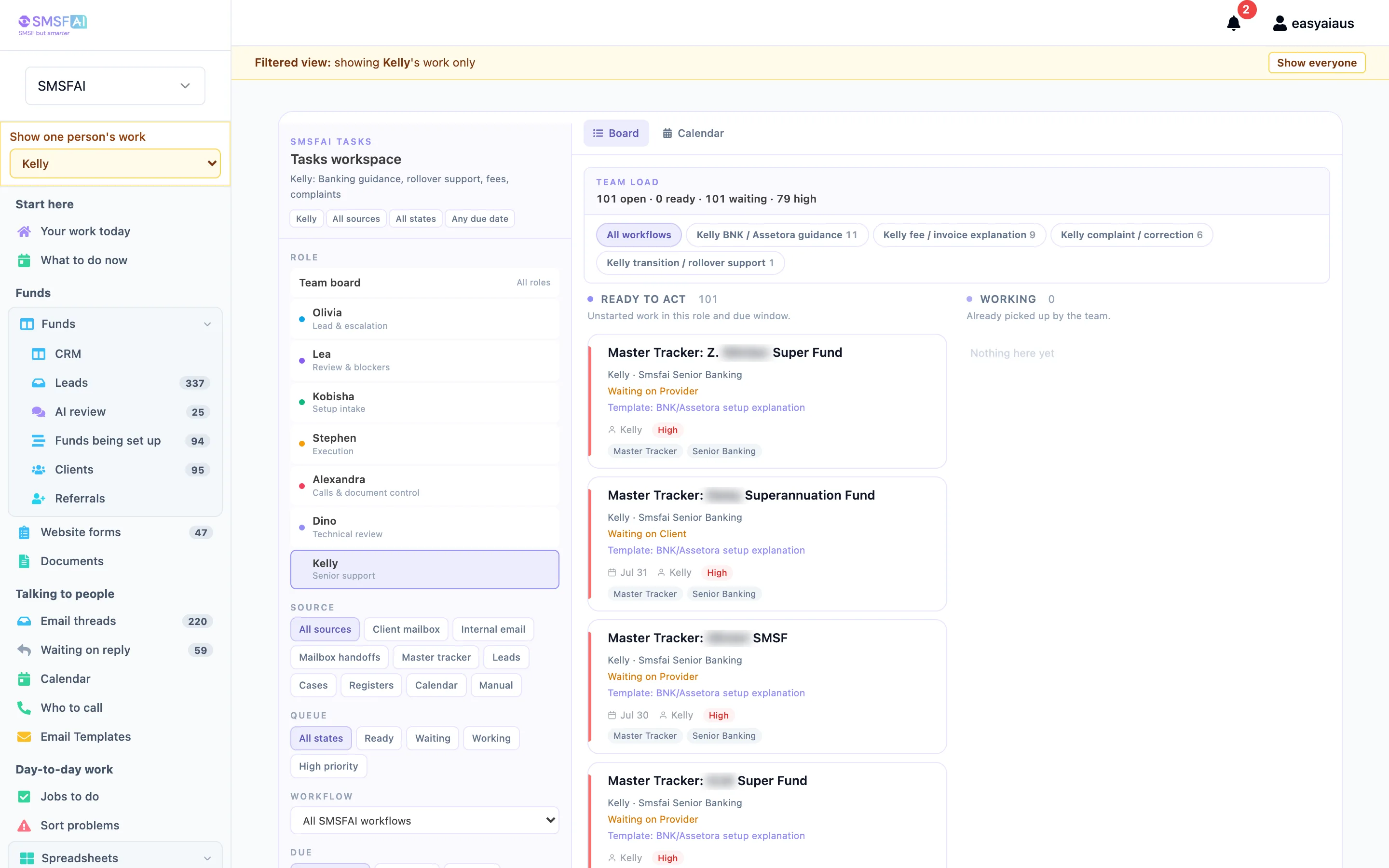
assets/images/demo/smsfai-pipeline.webpTasks — “Who does what, by when”
Say this
“This is the team’s shared to-do list. Tasks can come from emails and forms automatically — not only when someone remembers to add them.”
- Filter by role (e.g. calls, banking, technical)
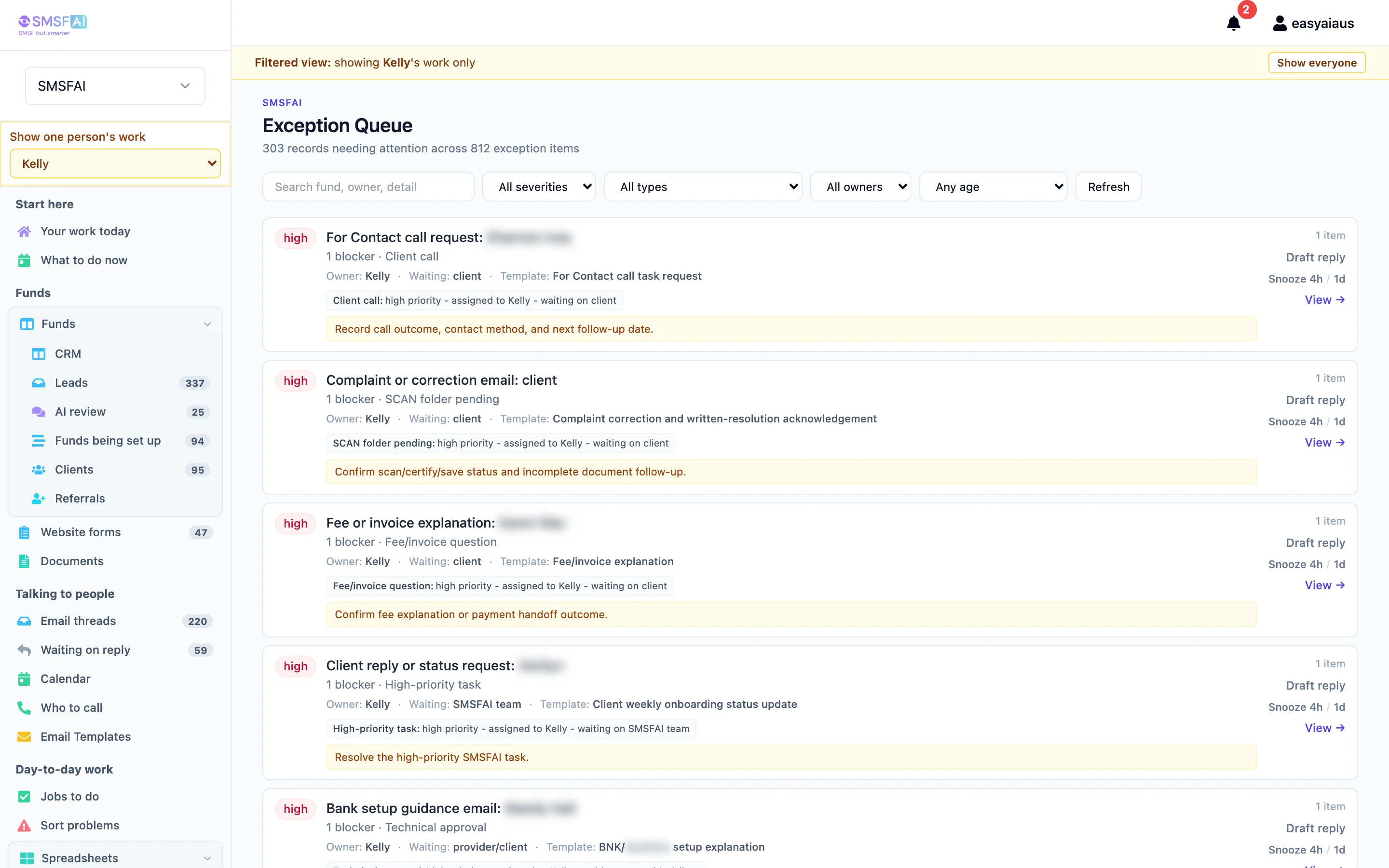
- Due date, owner, waiting on (client? bank? ATO?)
- Suggested next email on the task
“Everyone knows their pile for today — not buried in someone else’s inbox.”
The shared to-do list — filter by role, owner, due date
assets/images/demo/smsfai-tasks.webpWho each job is waiting on — with a draft reply ready
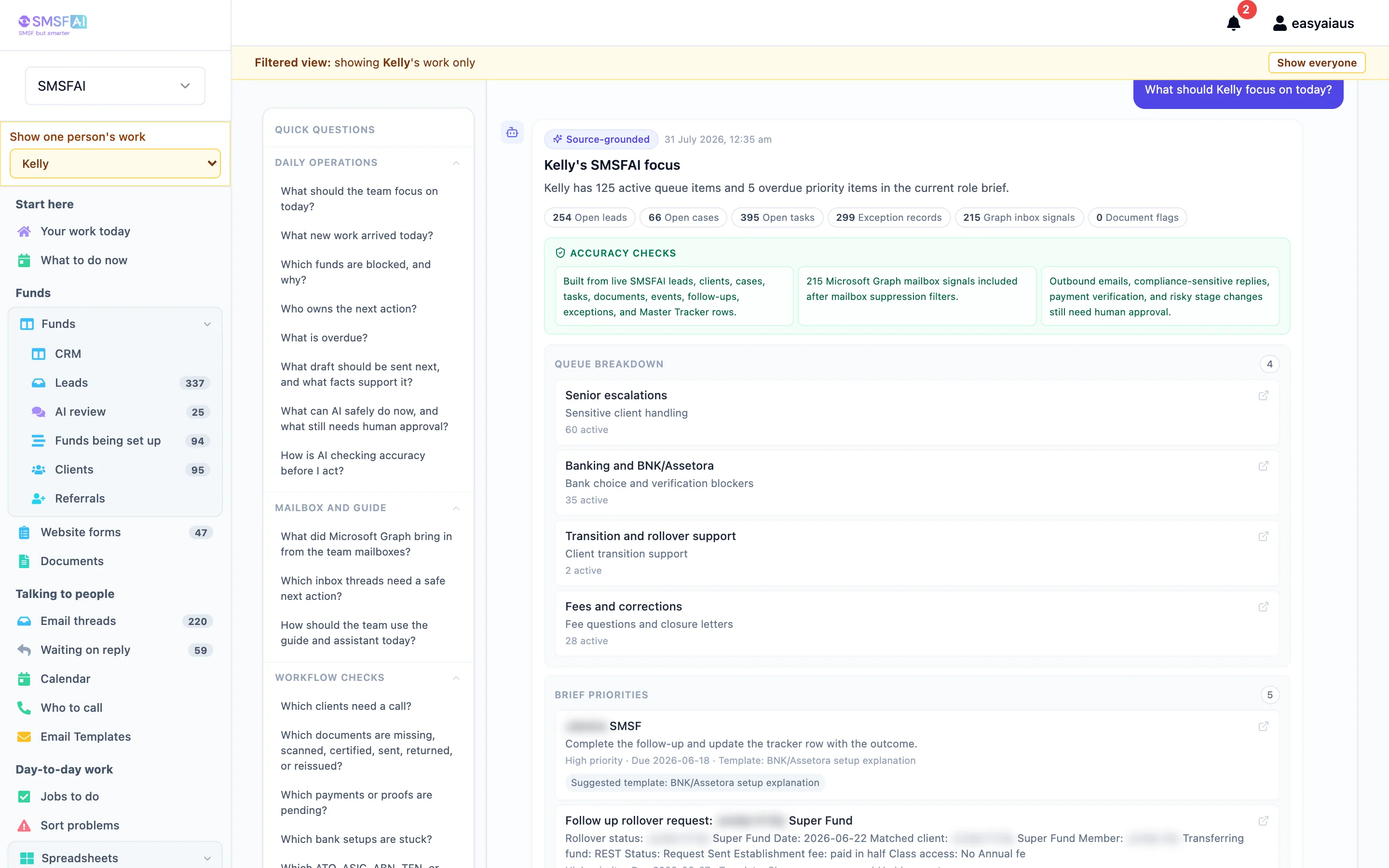
assets/images/demo/smsfai-exceptions.webpAI Assistant — “Ask in plain English”
Say this
“Staff can ask simple questions and get answers from live data — real funds, real tasks — custom-built on their live data, not generic ChatGPT guesses. AI suggests; people still decide and send.”
- Real names and numbers in every answer
- Links to open the actual record
“Like a smart colleague who read the whole system before you asked.”
Answers from live data — with links to the real record
assets/images/demo/smsfai-assistant.webpThere’s more under the hood.
Not part of the five stops — but already custom-built and running for this client.
Old Excel rows sync into real clients and tasks — history isn’t lost, it’s upgraded.
Upload a PDF — the system flags what’s missing before it becomes a blocker.
Share a simple status page so clients stop emailing “where are we up to?”
Straight answers.
No. It drafts. A person sends.
No. This client has a private, custom-built workspace — and so would you. Not shared. Not a generic product.
Good. Built for admins — screens and plain questions, not code.
Fine. This is the work layer — email → task → documents → approvals — where CRMs usually don’t go deep.
No. It’s custom-built for your workflow — your steps, your roles, your inbox. That’s the differentiation. Not a template. Not off-the-shelf software.
Same idea for you: a custom-built workspace —
your steps, your inbox, your templates.
Custom-built for your workflow — not a template or off-the-shelf tool. Built in phases so you get value in week one, not after a year. Next step is mapping your workflow the way we did for this client.